Short answer
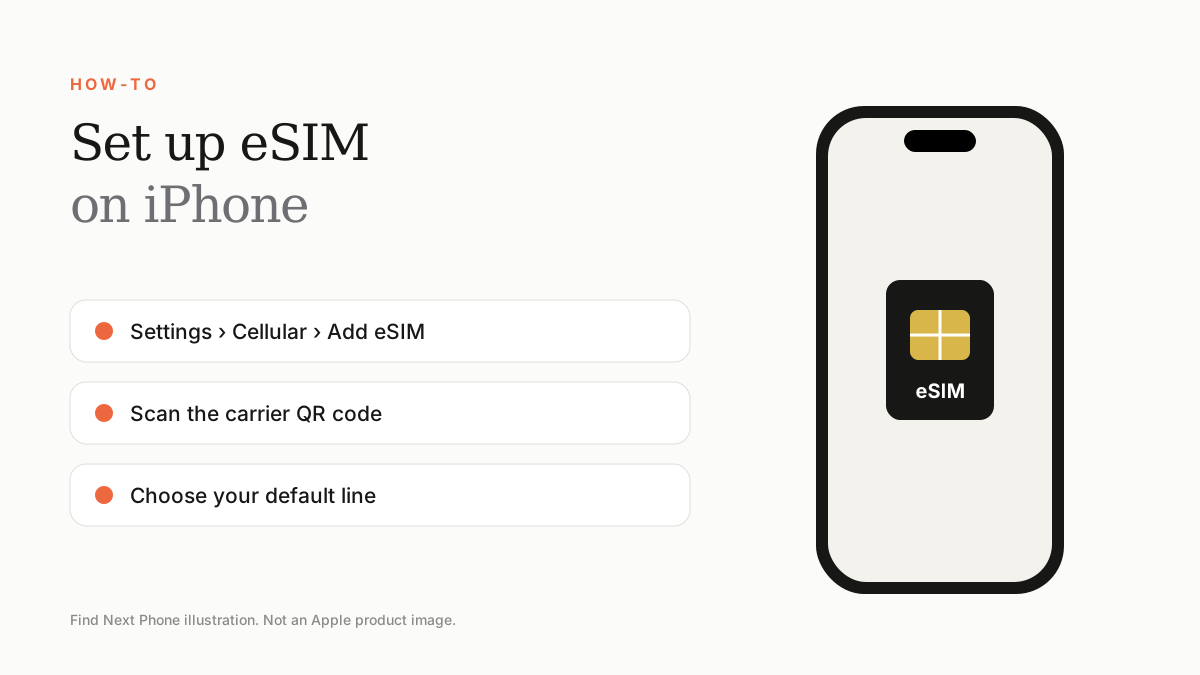
Open Settings › Cellular › Add eSIM, scan the QR code from your carrier or follow the carrier app, then choose how each line is used. Keep Wi-Fi on during setup.
An eSIM lets you add a mobile line without a physical card. It is useful for travelling and for dual-SIM use.
Set up in 5 steps
- Connect to Wi-Fi and update iOS.
- Go to Settings › Cellular (or Mobile Service) › Add eSIM.
- Scan the QR code from your carrier, or enter the details manually, or use your carrier's app.
- Give the line a label such as Personal or Travel.
- Choose your default line for calls, messages, mobile data and iMessage.
Moving an eSIM to a new iPhone
Use Quick Start during setup, or ask your carrier to issue a new eSIM. The old iPhone loses the line when the new one activates.
Travel eSIMs
- Install before you fly but activate on arrival, if the plan allows.
- Turn off data roaming on your home line.
- Keep your home line on for calls and SMS verification.
Troubleshooting
- Re-scan or re-issue the QR code if it is invalid.
- Restart the phone and update carrier settings.
- Check that the iPhone is carrier-unlocked.
- Some models are physical-SIM in certain regions; confirm before you buy.
Frequently asked questions
Can I use two eSIMs at once?
Many newer iPhones support multiple eSIMs but only some can be active at once; check your model.
Can I switch back to a physical SIM?
Yes, where your model has a SIM tray. Ask your carrier for a SIM card.
Sources
Find Next Phone is an independent retailer. Apple, iPhone and iOS are trademarks of Apple Inc. Illustrations are our own and are not Apple product images.