Short answer
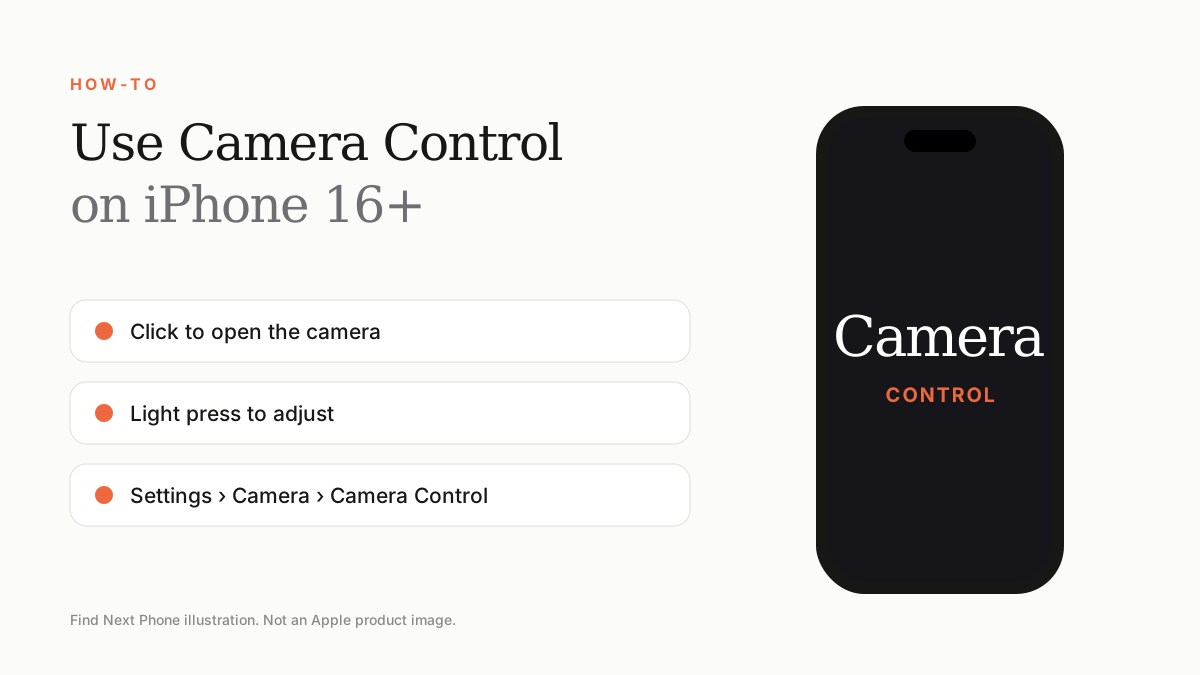
Press Camera Control once to open the Camera. Press again to take a photo. Lightly press (without clicking) to open adjustments, then slide your finger to change zoom, exposure and more.
Camera Control is the small button on the right side of iPhone 16 and later models.
Basic use
- Click once to launch the Camera app.
- Click again to take a photo.
- Press and hold to record video.
- Light-press to open the adjustment menu, then slide to change a setting.
Customise it
Go to Settings › Camera › Camera Control to choose which app opens, adjust the click speed and light-press sensitivity, or turn it off.
If it stops working
- Remove the case.
- Clean the button area.
- Restart the iPhone.
- Update iOS.
- If it still fails, book a service check.
Frequently asked questions
Which iPhones have Camera Control?
iPhone 16 and later models, except iPhone 16e.
Can I turn it off?
Yes, in Settings.
Sources
Find Next Phone is an independent retailer. Apple, iPhone and iOS are trademarks of Apple Inc. Illustrations are our own and are not Apple product images.