Short answer
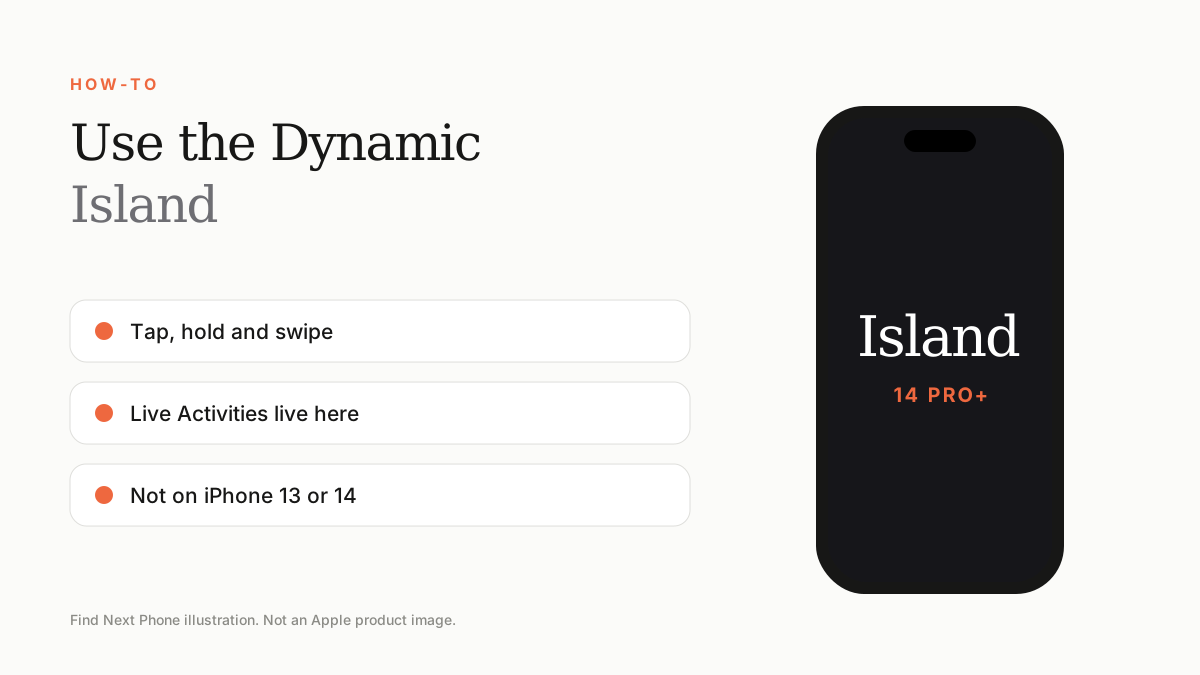
Tap the Dynamic Island to open an activity, press and hold to expand it, and swipe to dismiss. It shows calls, music, timers, maps and delivery updates. It is on iPhone 14 Pro and later, and on iPhone 15 and later standard models.
The Dynamic Island merges the front camera cut-out with the software around it.
Gestures
- Tap: open the app.
- Press and hold: expand controls.
- Swipe sideways: hide or dismiss.
- Two activities can show at once, side by side.
Which iPhones have it
| Model | Dynamic Island |
|---|---|
| iPhone 13 series | No (notch) |
| iPhone 14 and 14 Plus | No (notch) |
| iPhone 14 Pro and Pro Max | Yes |
| iPhone 15 and later (standard and Pro) | Yes |
| iPhone 16e | No (notch) |
Manage Live Activities
Open Settings, scroll to the app and tap it, then switch Live Activities on or off for that app.
Frequently asked questions
Does iPhone 13 have Dynamic Island?
No, but iPhone 13 has a smaller notch than iPhone 12.
Can I hide it?
Not fully, but you can turn off Live Activities.