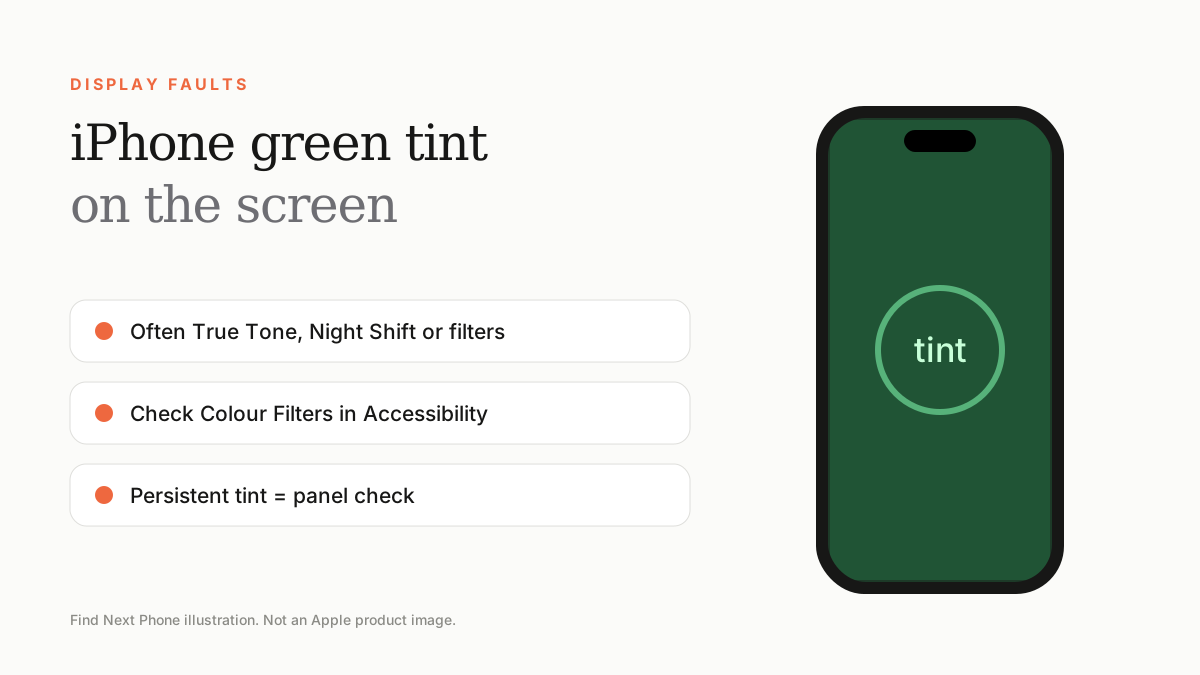
A green tint across the whole screen is often a settings or software issue — especially at low brightness or in dark mode. Turn off True Tone, check Colour Filters, update iOS, and book an inspection only if it persists.
A green wash across the entire display is different from a green line. Many owners notice it at low brightness, on dark backgrounds, or after an update. Here is what to try.
Settings that can cause a green tint
- True Tone adjusts colours to the room light and can look green or yellow in some lighting.
- Night Shift shifts the display to warmer tones and can look off at certain levels.
- Colour Filters in Accessibility can tint the entire screen.
- Reduce White Point or very low brightness can make an OLED appear greenish in dark scenes.
- A damaged or non-genuine replacement display may not match colour calibration.
Fix it step by step
- Open Control Center and temporarily turn True Tone off (press and hold the brightness slider).
- Go to Settings › Display & Brightness and turn off Night Shift.
- Go to Settings › Accessibility › Display & Text Size › Colour Filters and make sure it is off.
- Raise brightness to about 30–40% and see if the tint fades.
- Install the latest iOS version and restart.
- If the tint stays, take a screenshot. If the screenshot looks normal, the panel is the cause.
When it is a display problem
A tint that is only visible at low brightness, stays after every setting is reset, and affects dark grey backgrounds suggests the panel or a replacement screen is the cause. Ask Apple or a reputable repairer to check the display, and mention whether it has been replaced before.
Frequently asked questions
Is a green tint the same as a green line?
No. A tint covers the whole screen and is often fixable in settings. A line is thin and usually hardware.
Does Dark Mode make the tint worse?
On OLED screens, dark content at low brightness can reveal slight colour shifts, so the tint is easier to notice.