Short answer
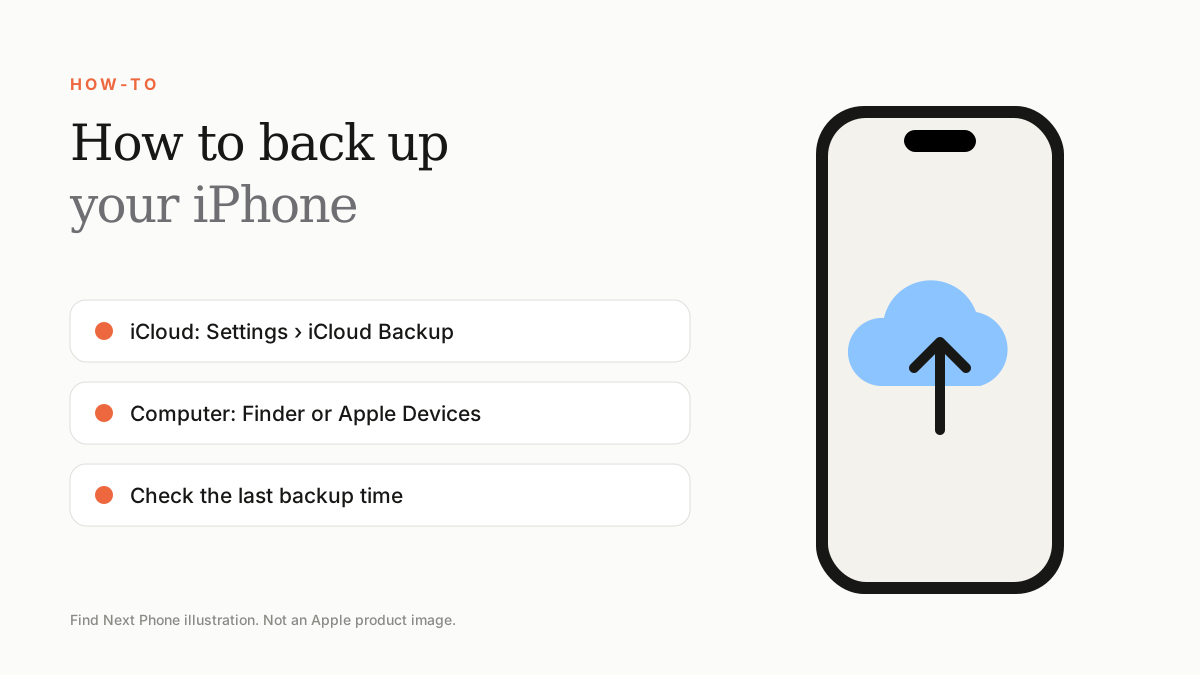
For iCloud, go to Settings › your name › iCloud › iCloud Backup and tap Back Up Now on Wi-Fi. For a computer, connect the iPhone and use Finder or the Apple Devices app.
A backup is the difference between an annoying phone problem and a disaster. Make one before updating, repairing, selling or upgrading.
iCloud backup
- Connect to Wi-Fi.
- Open Settings › tap your name › iCloud › iCloud Backup.
- Turn on Back Up This iPhone.
- Tap Back Up Now and keep the phone on Wi-Fi until it finishes.
Computer backup
- Connect your iPhone with a cable and unlock it.
- Open Finder on Mac or the Apple Devices app on Windows.
- Select your iPhone and choose Back Up Now.
- Tick 'Encrypt local backup' to include saved passwords and health data.
Which should you use?
| iCloud | Computer | |
|---|---|---|
| Convenience | Automatic on Wi-Fi | Manual |
| Storage | Counts against iCloud plan | Uses your computer's disk |
| Speed to restore | Depends on internet | Fast over cable |
Check that it worked
In iCloud Backup, the last backup date and time should be recent. On a computer, open Manage Backups to see the date.
Frequently asked questions
How much iCloud storage do I need?
The free 5GB is rarely enough. Many users need 50GB or 200GB.
Does a backup include photos?
If iCloud Photos is on, photos are stored there instead of in the backup.
Sources
Find Next Phone is an independent retailer. Apple, iPhone and iOS are trademarks of Apple Inc. Illustrations are our own and are not Apple product images.