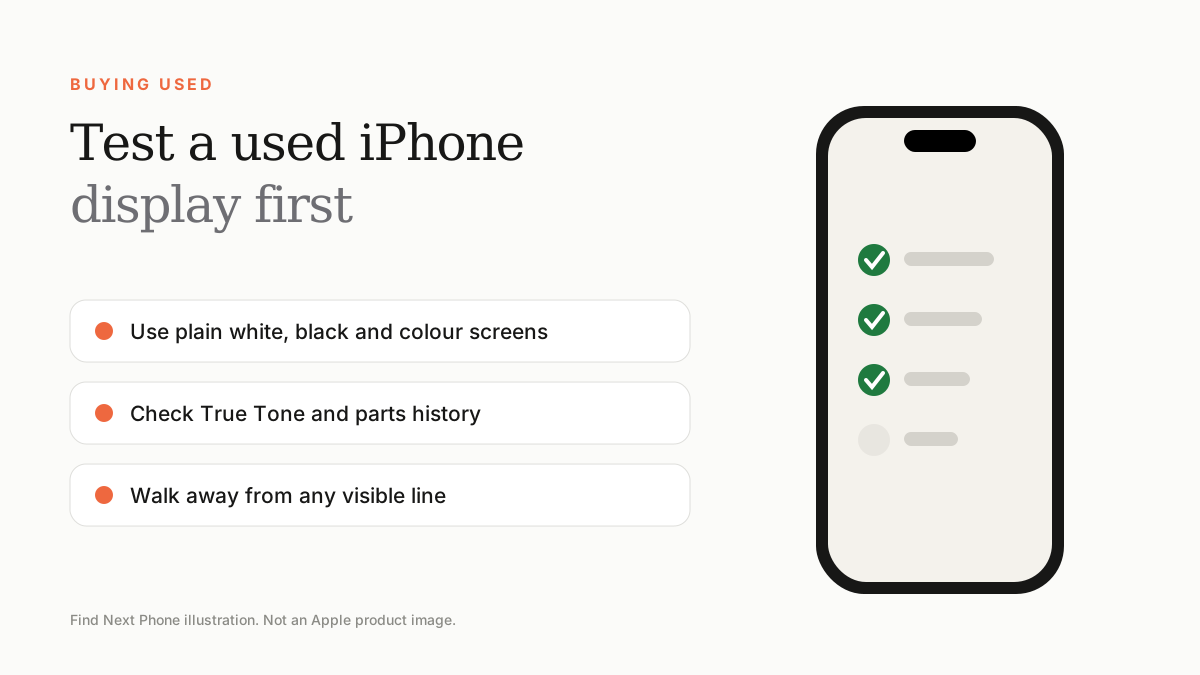
View solid white, black, red, green and blue screens at full brightness, check for lines, tints and burn-in, confirm True Tone works, and look at Settings › General › About for part warnings.
Display faults are the most expensive surprise when buying a second-hand iPhone. A green line can be invisible on a busy Home Screen but obvious on a plain background.
The 10-minute display test
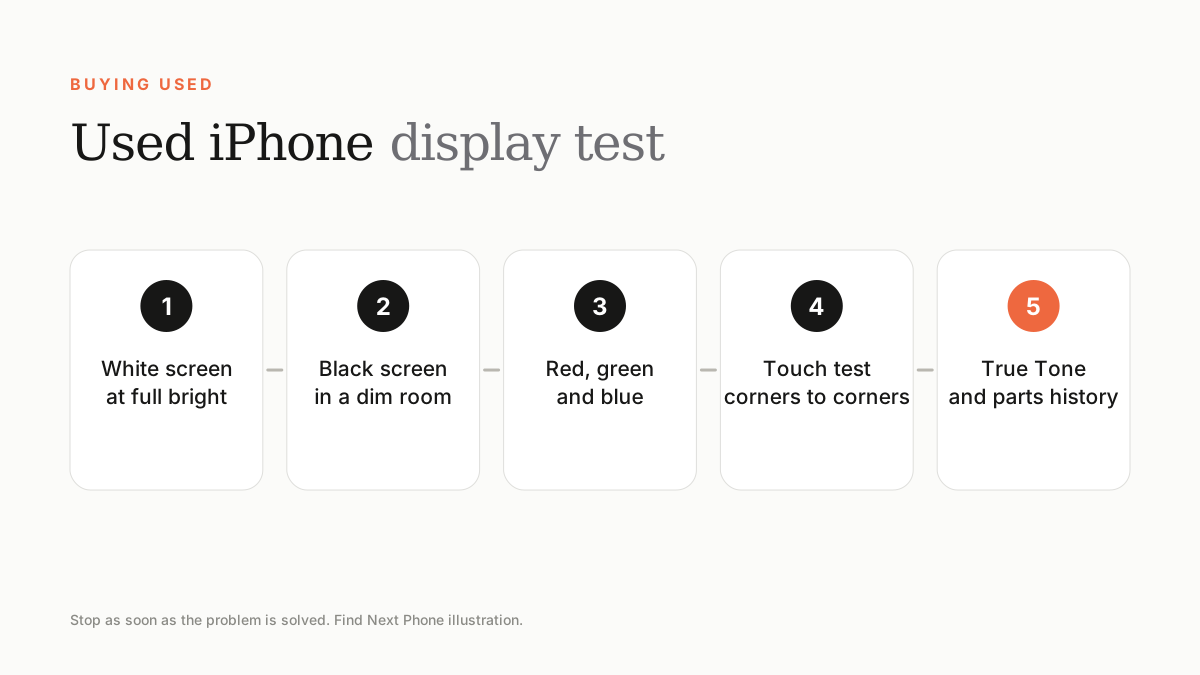
- Open a plain white image or a blank note and set brightness to maximum. Look for yellow patches, dim spots and thin lines.
- Switch to a pure black wallpaper in a dim room. Look for glowing lines, uneven edges and visible burn-in outlines.
- View solid red, green and blue images to reveal dead or stuck pixels and colour tints.
- Swipe through the whole screen, including corners and the edge, to test touch response. Try both portrait and landscape.
- Turn True Tone on and off in Control Center; if the option is missing, the display may have been replaced.
Check the settings page
Go to Settings › General › About and scroll to Parts and Service History if it is available. An 'Unknown Part' or a replaced display is not automatically bad, but it should be disclosed and priced in.
Red flags
- Any visible line, even thin, in any colour.
- A yellow or green edge where the screen meets the frame.
- A screen that sits slightly raised from the body.
- Ghost icons that remain when you change wallpaper.
- A seller who will not let you test the phone properly.
Safer ways to buy
Buying a certified used iPhone means each unit has already been graded and tested. At Find Next Phone our certified-used phones come with transparent grading and cover, so you don't need to do the inspection alone. Our full checklist is in the certified used guide.
Frequently asked questions
Can a seller hide a green line?
A line may be less visible on busy images, which is why solid backgrounds are essential.
Is a replaced screen a dealbreaker?
Not always, but it should be genuine or high quality and the price should reflect it.