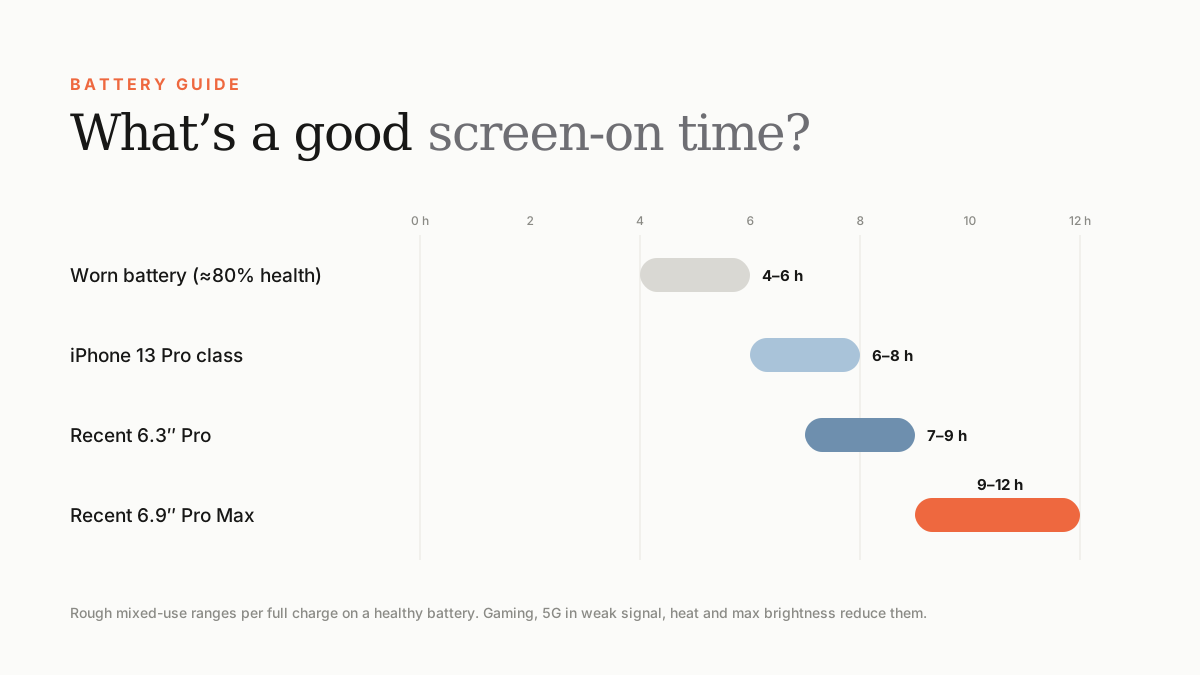
Screen-on time (SOT) is how long your display is actually on between charges. For mixed use on a healthy battery, 6–8 hours is good for an older Pro, and 9 hours or more is excellent for a recent Pro Max.
When people say 'my battery lasts all day', they mean very different things. Someone who checks their phone 50 times and someone who streams video for six hours have very different days. Screen-on time is the fairest way to compare battery life between phones and people.
What screen-on time means
SOT is the total time the display is lit between full charges. Screen-off drain — notifications, location, background syncing — also uses battery, but SOT is the number most people use as a battery benchmark.
Apple doesn't publish SOT. It publishes video-playback hours, which are measured in a lab and are always higher than real-world SOT.
How to check your SOT
- Open Settings › Battery.
- Look at the activity graph for Screen Active (or Screen On) and Screen Idle times.
- Switch between the last 24 hours and the last 10 days.
- Compare screen time since your last full charge to get your SOT per charge.
What's a good SOT?
| iPhone | Typical mixed-use SOT (healthy battery) |
|---|---|
| Any iPhone with a worn battery (~80% health) | 4–6 hours |
| iPhone 13 Pro / 14 Pro class | 6–8 hours |
| Recent 6.3-inch Pro (17 Pro, 18 Pro) | 7–9 hours |
| Recent 6.9-inch Pro Max (17 Pro Max, 18 Pro Max) | 9–12 hours |
What reduces SOT
- High brightness — especially outdoors in the UAE sun.
- Gaming and camera use.
- Weak mobile signal.
- Heat: batteries work harder in high temperatures.
- Navigation and hotspot use.
- Battery health below about 85%.
How to get more SOT
- Use Auto-Brightness.
- Turn off Connectivity Assist if your Wi-Fi is good.
- Use Wi-Fi where possible in weak-signal areas.
- Turn off Background App Refresh for apps that don't need it.
- Avoid charging in hot cars — heat ages batteries.