Short answer
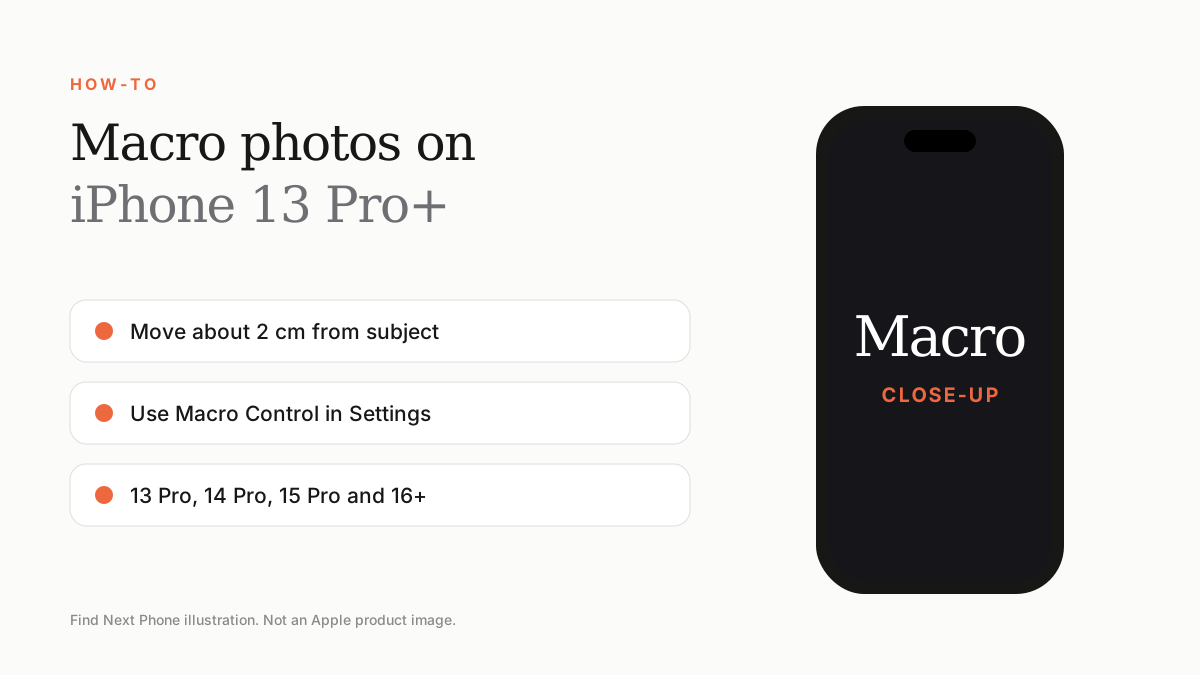
Move your iPhone close to a subject (about 2cm) and the camera switches to macro automatically on supported models. You can control it in Settings › Camera › Macro Control.
Macro photography needs a lens with autofocus at close distance: iPhone 13 Pro and later Pro models, and iPhone 16 and later models, have one.
How to shoot
- Open Camera.
- Move close to the subject until the view changes and a flower icon appears.
- Tap to focus and take the photo.
- Back off if the image is blurry.
If macro switches randomly
Turn on Macro Control in Settings › Camera, which adds a button so you decide when macro is used.
Tips
- Use daylight.
- Hold still or use a tripod.
- Avoid casting your own shadow.
Frequently asked questions
Does iPhone 13 have macro?
Only iPhone 13 Pro and Pro Max.
Does iPhone 15 have macro?
Only the Pro models.